Move lines and connectors
Once you draw a line or connector (see Adding lines and connectors), you will notice small circles at each endpoint. If it is a connector with more than two segments, each middle segment also has a small circle. These circles work like the squares around the boundary boxes of shapes.
Connectors have multiple pivot points along the connector line, making the connector line more flexible. You can add more pivot points as you adjust your line.
Select and drag one of the circles to adjust only that segment of the line or connector.
To move the entire line without changing its shape, select anywhere on the line or connector except the circles. Drag the shape to a new location on the diagram or use the up, down, left, and right arrows on your keyboard to move it. If you move the shape that a line or connector is linked to, the line or connector adjusts to maintain the connection.
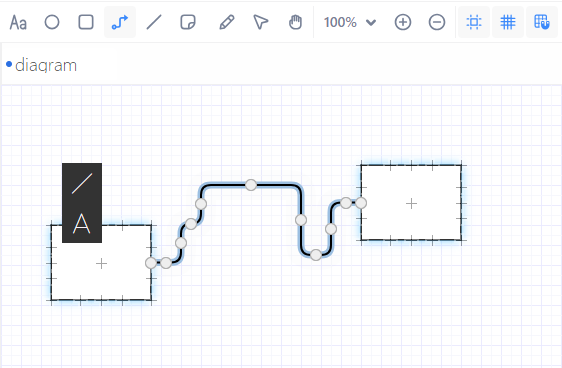
You can drag shapes onto the connector line. See Connect shapes and connector lines.
 .
.