Rotate objects
You can rotate any object or group of objects.
-
Select the object to rotate.
To select an object, from the toolbar, select the pointer and then the object. Or, drag around the entire object
  and release it so that a blue bounding box appears
  . To select the entire diagram, from the Edit menu, select Select All (or Ctrl+A on your keyboard).
 -
Select the Rotate
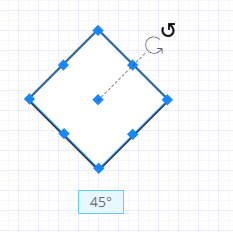
 button above the object and drag it clockwise or counter-clockwise to the desired orientation and then release. Objects automatically rotate in 15 degree increments.
The exact rotation in degrees appears below the shape.
-
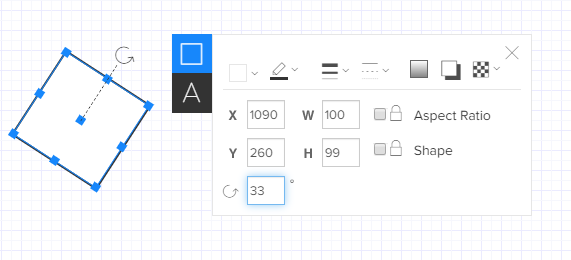
To specify an exact rotation angle, select the Shape Properties button and in the rotation box, enter the exact rotation in degrees clockwise.