Delete diagrams
You can permanently delete a diagram from the Confluence page where it was created. Gliffy diagrams are stored as attachments on a page, therefore you must delete it from the Confluence attachments.
Delete a diagram from a page in Confluence Cloud
-
On the Confluence page that contains the diagram, select Show details > Attachments from the floating menu.


-
Locate your diagram in the list.
-
For both the GLIFFY DIAGRAM and GLIFFY IMAGE attachments, select Delete.
-
When prompted to confirm the deletion, select OK.
-
Return to the Confluence page.
-
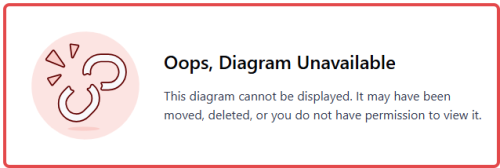
Edit the Confluence page. You see a Gliffy error where the diagram should be.
-
Delete the error image.
Delete a diagram from a page in Confluence Data Center
-
In the Confluence page that contains the diagram, select
 > Attachments.
 -
Locate your diagram in the list.
-
For both the GLIFFY DIAGRAM and GLIFFY IMAGE attachments, select Delete.
-
When prompted to confirm the deletion, select OK.
-
Return to the Confluence page.
-
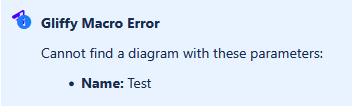
Edit the Confluence page. You see a Gliffy error where the diagram should be.
-
Delete the error image.
Delete a linked diagram
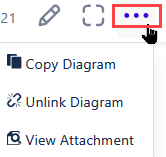
Linked diagrams are existing diagrams that are attached to a different Confluence page. If a diagram is linked on a page, you will not see the diagram in the page attachments. When a diagram is linked to a different page, you can also see the ... menu in the diagram toolbar:
Delete a linked diagram from the linked page
If you want to delete a linked diagram only from one of the pages where the diagram is linked, follow these steps:
-
On the Confluence page that contains the linked diagram, select the ... menu in the diagram toolbar.
-
Select Unlink Diagram.
-
You will see an error where the diagram should be. Delete the error image.
Delete a linked diagram from the original page
If you want to delete a linked diagram from the original page and therefore from all pages where it is linked, follow these steps:
-
In the Confluence page that contains the linked diagram, select the ... menu in the diagram toolbar.
-
Select View Attachment.
This will take you to the Attachments screen of the page where the diagram was originally created.
-
Locate your diagram in the list.
-
For both the GLIFFY DIAGRAM and GLIFFY IMAGE attachments, select Delete.
-
When prompted to confirm the deletion, select OK.
-
Return to the Confluence page.
-
Edit the Confluence page. You see a Gliffy error where the diagram should be.
-
Delete the error image.