Import Gliffy diagram data to Zero Egress
Use this procedure to import the exported Gliffy diagram data into the Gliffy Zero Egress | Compliance-Ready Diagramming app in Confluence Cloud.
Prepare the Confluence Cloud instance
Before you start the import, wait for Confluence Cloud to finish indexing the migrated content. Indexing can take several hours and up to 48 hours for large instances. Because Confluence Cloud does not provide an indexing status indicator, do not start importing data immediately after the CCMA migration is completed. To help ensure that indexing is completed, wait up to 48 hours.
Gliffy import relies on Confluence indexing and search. If indexing is not complete, some diagrams might fail to import.
Remove page restrictions
Before you start the import, remove view and edit restrictions from any restricted pages in your Confluence Cloud. Diagrams on restricted pages do not work after the import is completed.
To remove page restrictions:
-
In Confluence Cloud, select Confluence administration.
-
Select Security > Space permissions.
-
For the affected space, select Manage access.
-
Select Content > Restricted.
-
Select Remove Restrictions
 .
.
You can reapply restrictions after the import is completed.
Import the data
-
In Confluence Cloud, select Confluence administration.
-
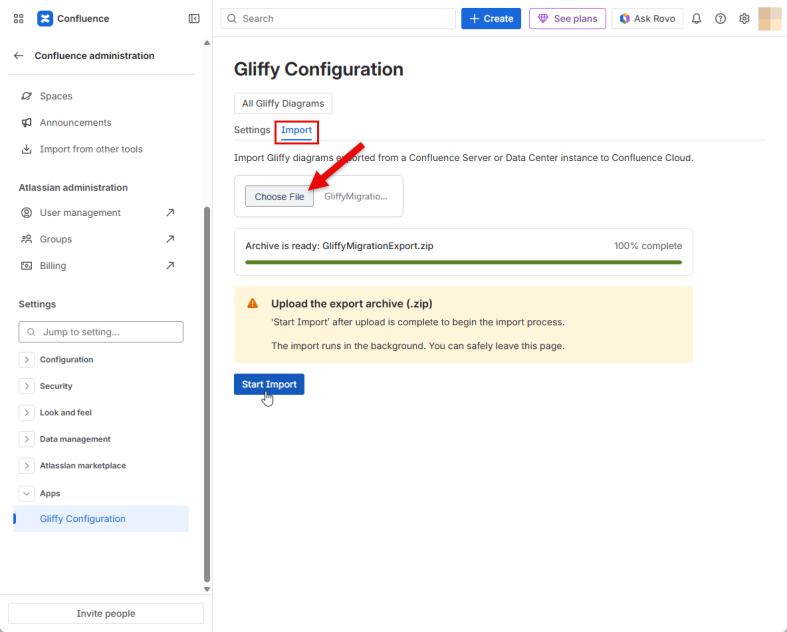
Select Apps > Gliffy Configuration.
-
Select the Import tab.
-
Select Start new import.
-
Select Choose File and upload the exported .zip file.
-
Select Start Import.
-
After the import is completed, select Download import log and save the log for reference.
This log is essential for troubleshooting and is available only for 30 days after a migration is completed, failed, canceled, or abandoned. After this period, the log is permanently deleted and can no longer be downloaded.
If you discover restricted pages with diagrams after the import is completed, Remove page restrictions and run the import again.