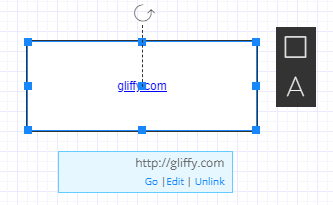
Link text
You can hyperlink text to point to another Gliffy diagram or attachment in your Confluence instance or to a website URL.
Hyperlinks are active when viewing the published diagram on a Confluence page, exported as SVG, or published as an embedded diagram.
The link navigator lets you search for any page on any wiki in your Confluence instance, browse the Confluence pages that you have recently viewed, link to attachments on the current Confluence page, link to page content (sections formatted as h1, h2, etc.) on the current page, or set up a Web link to any URL.
1. In your diagram, double-click the text to highlight the words you want to turn into an active link.
2. In the toolbar, click the Create Link  button. Or, click the Text Properties
  button and click the Insert/Edit Link button.
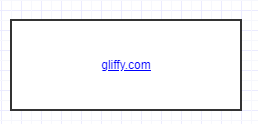
3. Click Insert. After inserting the link, the text is blue and underlined.
4. Click the shape to show the link destination, go to the link, edit the link, or unlink.