Generate console logs and HAR files
When you contact Gliffy support (see Contact support), you might be asked to capture a console log and a HAR file and attach those to your reply.
Console logs often contain important information about errors in the web browser, which help us identify the root cause of the issue. HAR files are network logs that track the web browser's interaction with a website. These files help us troubleshoot and identify the root cause of issues with Gliffy.
See the following topics for detailed steps on how to create console logs and HAR files for the web browser you are using:
Capture a console log and a HAR file at the same time
-
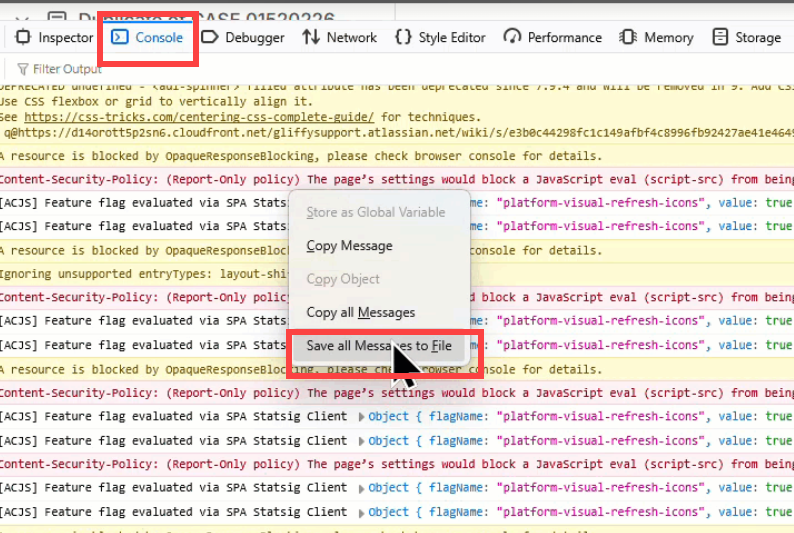
To capture a console log, click the Console tab, right-click the mouse and select Save all Messages to File:
-
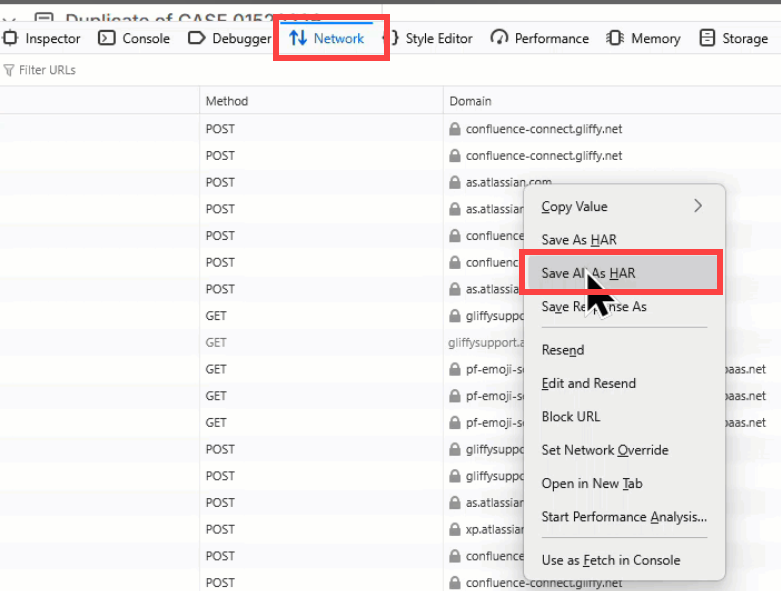
To capture a HAR file, click the Network tab, right-click the mouse and select Save All As HAR:
-
Attach the generated files to your reply to Gliffy support.