Create a diagram with the Gliffy Diagram agent
You can create a new diagram by communicating with the Gliffy Diagram agent directly in the chat window.
To create a diagram from a prompt:
-
Open a chat session with the Gliffy Diagram agent in Rovo:
-
In your Confluence space, select Ask Rovo.
-
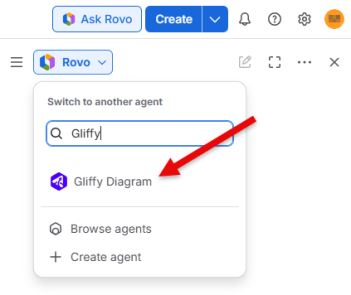
In the Rovo pane, enter Gliffy to find and select the Gliffy Diagram agent.
-
-
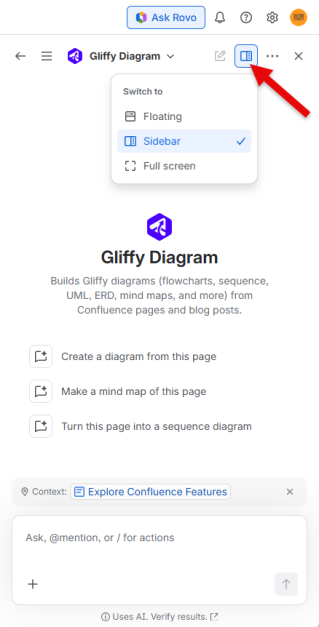
Select the appropriate chat window type:
-
Use Floating or Sidebar to use the current Confluence page as context.
-
Use Full screen only when you can provide a link to the relevant Confluence page.
-
-
Use one of the suggested actions, or enter a prompt that describes the diagram you want generated. You can add information about:
-
The diagram type, such as Flowchart, Sequence Diagram, Class Diagram, or Entity Relationship Diagram
-
The diagram structure
-
Important labels
-
Relationships between elements
-
-
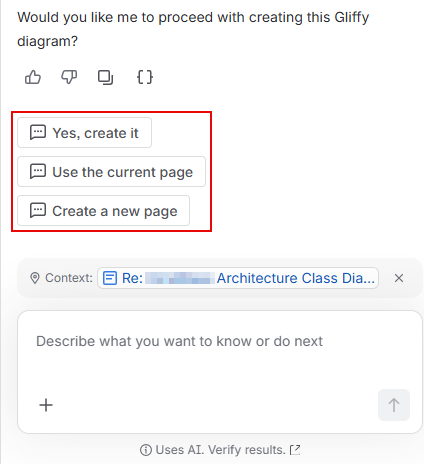
When prompted, confirm that the agent can create the diagram, or choose where to insert it.
-
Review the agent's suggestion and select Confirm selected to generate the diagram.
You can make adjustments to your prompt if needed or Cancel the diagram creation.
-
The agent takes a moment to create your diagram.
When the diagram is ready, a pop-up window appears on the screen.
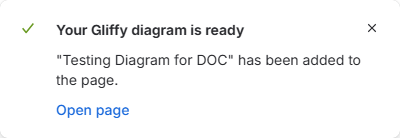
You also receive a notification because the Gliffy Diagram agent adds a confirmation comment to the page where it inserted the diagram and tags you in the comment.
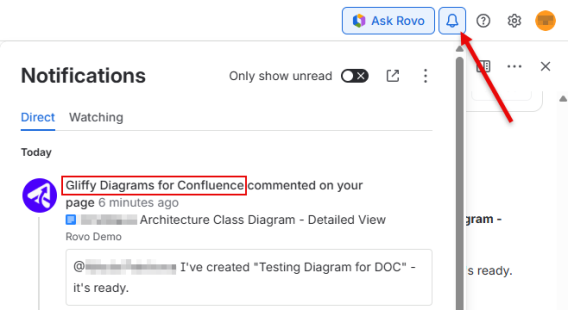
The Gliffy diagram agent inserts the diagram into the page and records you as the author of the change.
-
Review the generated editable Mermaid diagram.
For more information about Mermaid diagrams used by the Gliffy Diagram agent, see Gliffy integration with Mermaid.
-
Modify the diagram in the Gliffy editor if needed.
For information about editing diagrams, see Edit an existing diagram.